Wednesday, September 19, 2012

SET SPN on the SQL service account

It´s not so easy to find a clear roule how this shall be done. But this is what I use and it works.
You have to setup three SPN-s, Full FQDN against the port (be sure to use static), FQDN against the instancename and a third one against the Netbios name.

SETSPN -s MSSQLSvc/SERVERNAME.DOMIANNAME.COM:port DOMAIN\SQLSERVICEACCOUNT
SETSPN -s MSSQLSvc/SERVERNAME.DOMIANNAME.COM:Instancename DOMAIN\SQLSERVICEACCOUNT
SETSPN -s MSSQLSvc/SERVERNAME DOMAIN\SQLSERVICEACCOUNT

For the analysis service those two are needed

SETSPN -s MSOLAPSvc.3/SERVERNAME.DOMIANNAME.COM:Instancename DOMAIN\SQLSERVICEACCOUNT
SETSPN -s MSOLAPSvc.3/SERVERNAME:Instancename DOMAIN\SQLSERVICEACCOUNT

In some situation also the browser needs to be fixed.

SETSPN -s MSOLAPDisco.3/SERVERNAME.DOMIANNAME.COM SERVERNAME
SETSPN -s MSOLAPDisco.3/SERVERNAME SERVERNAME

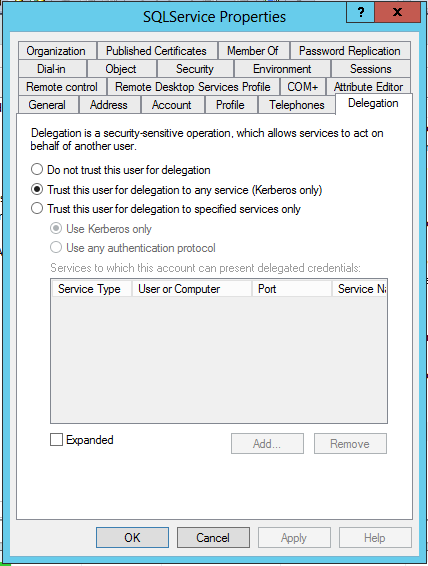
Beyond of the Kerberos SPN setting you also need to set the serviceaccount trusted for delegation in active directory. Client will use Kerberos anyway but in some situation
where you have more then two machines involved in the authentication chain this is necessary.


Monday, September 3, 2012

Query Excel and text files from SQL

Here is some different ways to query an excel sheet or textfile.

Excel..
SELECT * FROM OPENDATASOURCE('Microsoft.Jet.OLEDB.4.0',
'Data Source=G:\test.xls;Extended Properties=Excel 8.0')...[sheetname$]

SELECT * FROM OPENROWSET('Microsoft.Jet.OLEDB.4.0',
'Excel 8.0;Database=G:\test.xls', [sheetname$])

SELECT * into import FROM OPENROWSET('Microsoft.Jet.OLEDB.4.0',
'Excel 8.0;Database=G:\test.xls', 'SELECT * FROM [sheetname$]')

Texfile..
select * from OpenRowset('MSDASQL',
'Driver={Microsoft Text Driver (*.txt; *.csv)}; DefaultDir=C:\Temp;Extended properties=''ColNameHeader=True;Format=CSVDelimited;''','select * from test.csv')

SELECT a.* FROM OPENROWSET( BULK 'c:\test\test.txt',
FORMATFILE = 'c:\test\formatfil.fmt') AS a;

Most of the time I have test to query textfiles from OPENROWSET it is difficult to delimiter the columns in the text file. I have never seen the Format=CSVDelimited settings having any affect. But the grate site connectionstring.com pointed out that you must set this in the registry on the server. And this works well for me. See example below. I wonder why the setting is available in the Extended Properties then?? At least I have never got it to work. But that says nothing :-)


The delimiter can be specified in the registry at the following location:

HKEY_LOCAL_MACHINE \ SOFTWARE \ Microsoft \ Jet \ 4.0 \ Engines \ Text 
"Format" = "TabDelimited" or "Format" = "Delimited(;)"

Thursday, August 2, 2012

Where to find the systemdatabases on installation media?

Those files can be usefull, in the installation media they reside here:
\x64\Setup\sql_engine_core_inst_msi\PFiles\SqlServr\MSSQL.X\MSSQL\Binn\Template

Monday, May 7, 2012

setup.rll is either not designed to run on Windows or it contains an error.


Hi SQL folks. A couple of time when I have done installation of SQL 2008 R2 with unpacked iso image the database engine installation has failed. And it tells you that some of the msi image is corrupt. Im nut sure if there is any problem when unpacking the iso image. Anyway after this has happened it’s not possible to uninstall the corrupt SQL installation. You will receive an error like this:

Application popup: setup.exe - Bad Image : C:\Program Files\Microsoft SQL Server\100\Setup Bootstrap\SQLServer2008R2\resources\1033\setup.rll is either not designed to run on Windows or it contains an error. Try installing the program again using the original installation media or contact your system administrator or the software vendor for support.

First time I saw this I did not solve it. So I have to let the windows guys reinstall the operating system. But today when same error come up googled the error message and saw that Alex Siow solved it just with copying the setup.rll files from the installation media path: 1033_ENU_LP\x64\Setup\sqlsupport_msi\PFiles\SqlServr\100\Setup\fe72iemr\Res\1033 to Program Files\Microsoft SQL Server\100\Setup Bootstrap\SQLServer2008R2\Resources\1033 and it also worked for me. Yes!

Have a nice day everyone.

Friday, January 13, 2012

How to move a database to a lower version level

It easier than you think.
1. In the source SQL server you right klick on the database you wich to move or copy. Chose “Tasks”, then “Generate Scripts.." Run this wizart to export all objects in the database. Unde advanced chose to save it for SQL 2005 or whatever version it is.
2. On the destination server run the script to create the database and all objects in it.
3. Now we have an empty database. Let’s then export import the data. For this we use the BCP utility. On the source server run this script in a query window.(thanks for this script Madhivanan)


declare @tables table(table_name varchar(100))
insert into @tables
select name from sysobjects where xtype ='u'
declare @table_name varchar(1000)
select @table_name=min(table_name)from @tables
while @table_name>''
Begin  
Declare @str varchar(1000)    
set @str='Exec Master..xp_Cmdshell ''bcp '+db_name()+'.dbo.'+@table_name+' out C:\temp\test\'+@table_name+'.txt -T -c'''
Exec(@str)  
select  @table_name=min(table_name) from @tables where table_name>@table_name
print @str
End


4. Now we export all the data to textfiles. Every table has a textfile each. Let’s import them now.
5. On the target server run same scrip again but change out to ín instead. Be sure to use the correct path to the files also.
That’s all, easy and quite fast way to go.
Joel Sjöö